 Meridian
Open Meridian the first time.
macOS checks with you before it opens an app from outside the App Store. It takes a minute, once.
Meridian is signed, but not notarized by Apple, so macOS asks first. Nothing is wrong with the file: it is scanned on VirusTotal every version.
-
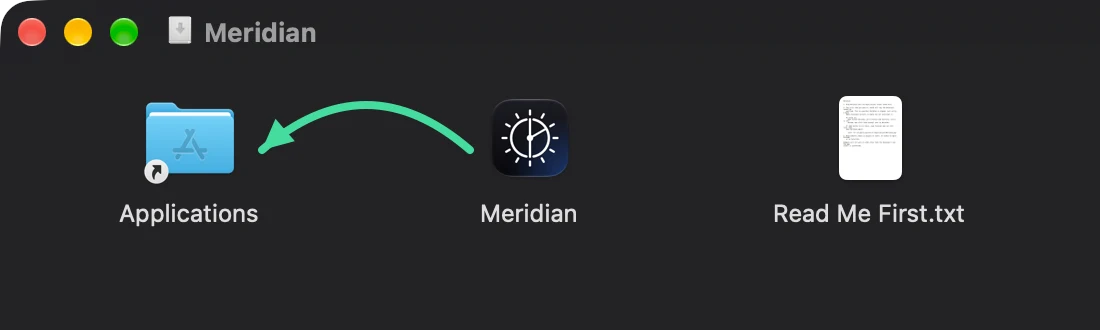
Drag Meridian into Applications
Open the file you downloaded. In the window that opens, drag Meridian onto the Applications folder.
-
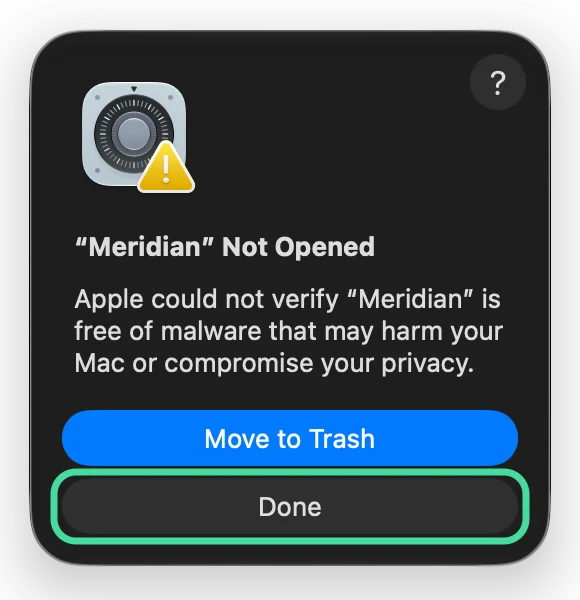
Open it, and click Done
Open Meridian from Applications. A box says “Meridian” Not Opened. Click Done. Not Move to Trash.
-
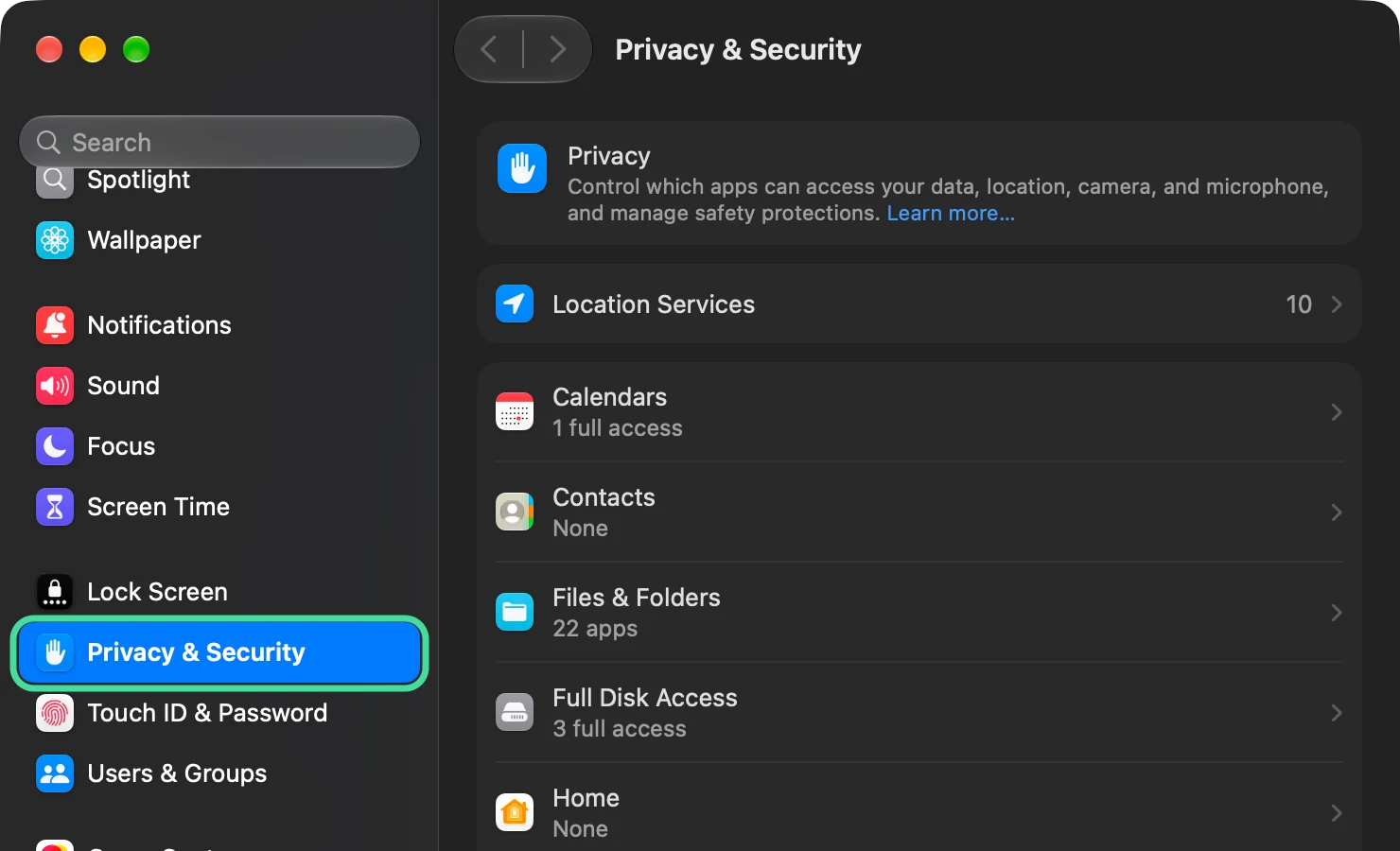
Go to Privacy & Security
Open System Settings from the Apple menu, then click Privacy & Security in the sidebar.
-
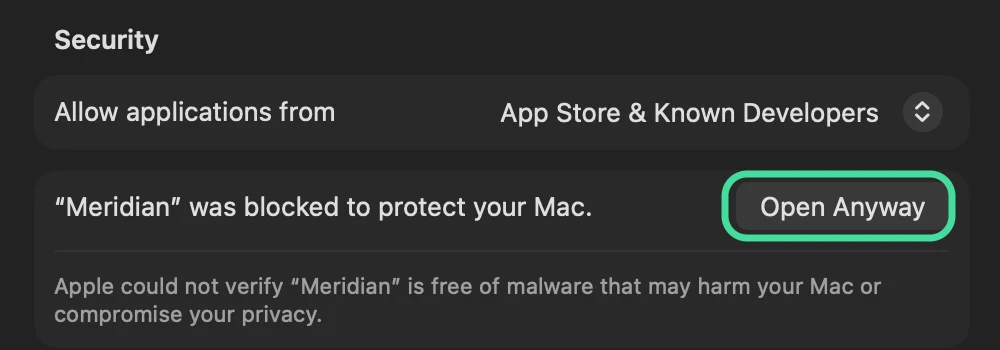
Scroll down and click Open Anyway
Scroll down to Security. Next to “Meridian” was blocked to protect your Mac, click Open Anyway.
-
Your password, then Open Anyway again
Enter your Mac’s password, or use Touch ID. One last box asks again: click Open Anyway, and Meridian opens.
-
That is all
From now on Meridian opens straight away, and updates itself from its Settings. You will not see these boxes again.